Text-to-Speech for Google Docs
Google Docs is the backbone of modern productivity, but traditional text-to-speech tools struggle to read them. Standard screen readers often break formatting, read background code, or force you to export the document as a PDF before you can listen.
The Audeus browser extension natively integrates with Google Workspace, allowing you to read Google Docs aloud in-place, edit in real time, or export files directly to your personal library. Writers and editors often use this to proofread drafts by ear without leaving the document.
Install the Audeus Browser Extension
The Audeus extension works across all major web browsers. To get started, make sure the extension is installed and active:
- Install Audeus on Google Chrome
- Install Audeus on Apple Safari
- Install Audeus on Mozilla Firefox
- Install Audeus on Microsoft Edge
For the extension to load inside Google Docs, you must grant it site permission access. You can find step-by-step guidance in the permissions configuration section of our Chrome Extension Setup Guide.
How to Read Google Docs Aloud
Once the extension is installed and set up, you can start listening directly on the Google Docs page:
- Open any document in Google Docs.
- Hover your mouse over the paragraph where you want to start listening.
- Look for the floating Audeus Play Button that appears on the left margin next to the text canvas.
- Click the button to start listening. The sidebar player will slide out, highlighting each word in real time.
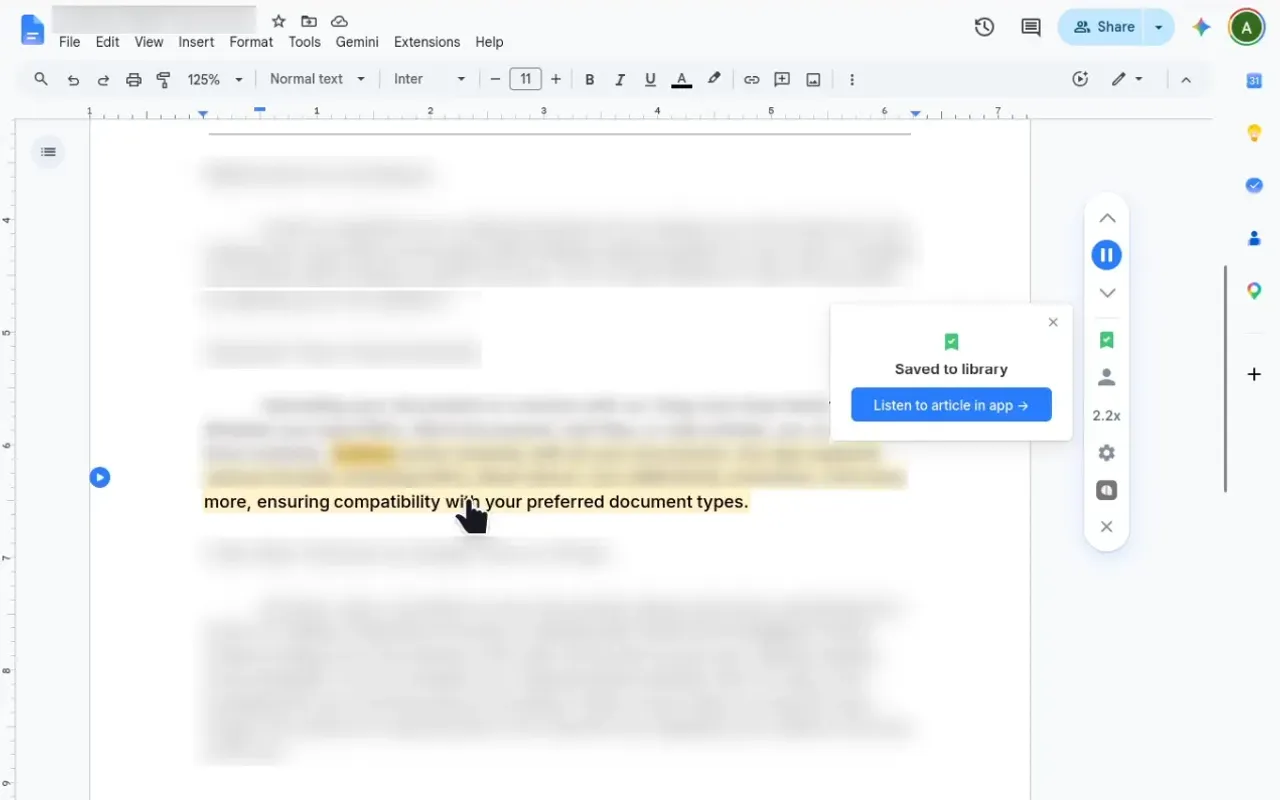
How to Save Google Docs to Your Library
If you want to listen to your document while away from your computer, you can send it directly to your mobile devices:
- Open the Audeus extension menu in your browser toolbar.
- Click the Save to Library button.
- Audeus will automatically export the document as a PDF and upload it to your personal cloud account.
- The document will open in a new tab and sync instantly with your iOS App and Android App.
How to Proofread Google Docs While Listening
Because Audeus functions as an overlay on your browser tab, your Google Doc remains fully editable during playback.
If you hear a sentence that sounds awkward, simply pause playback, make the edits directly on the page, and click play again. Audeus immediately reads your new edits without requiring you to reload the document or re-upload any files.
Frequently Asked Questions
Do I need to give Audeus access to my Google Drive files?
Audeus respects your privacy and operates entirely without Google Drive access. The extension only reads the visual text displayed on the active browser tab when you click play. Your private Google Drive folders and personal cloud files remain completely inaccessible and secure.
Can I listen to my Google Doc on the Audeus mobile app?
Yes, absolutely! By clicking the Save to Library button inside the browser extension widget, Audeus exports your document and saves it directly to your cloud library, syncing it to your phone.
Why is the floating play button not appearing on my Google Doc?
If the play button does not appear, check that the Audeus extension has proper access permissions to run on the page. Depending on your browser, you can configure these settings by following the steps in our guides:
- Chrome: Configure site access to run on all sites by following our Chrome Permissions Guide.
- Safari: Enable the extension in your browser settings by following our Safari Permissions Guide.
- Firefox: Manage site access toggles by following our Firefox Permissions Guide.
- Edge: Configure site access permissions to run on all sites by following our Edge Permissions Guide.
Does Audeus read comments and formatting markers?
Audeus is designed to parse documents cleanly by focusing only on your core content. It automatically filters out side comments, editing suggestions, formatting tags, and headers to keep your listening experience completely distraction-free.
Can I skip ahead to a specific paragraph in my Google Doc?
Yes, absolutely! Simply click on any word or sentence on the page, and the narrator will instantly snap to that location and continue reading.
Related Guides
Still need help?
Contact Support