Delete Documents and Manage Storage
Audeus automatically syncs your reading library to the cloud. Managing your files keeps your library organized and ensures you have enough storage space for new uploads.
Delete Documents and Manage Folders on the Audeus Web Reader
For web-based library management, you can delete documents and organize folders directly from your browser:
Delete Documents on Audeus Web Reader
- Log into your account and open the Web Reader or go directly to the Library.
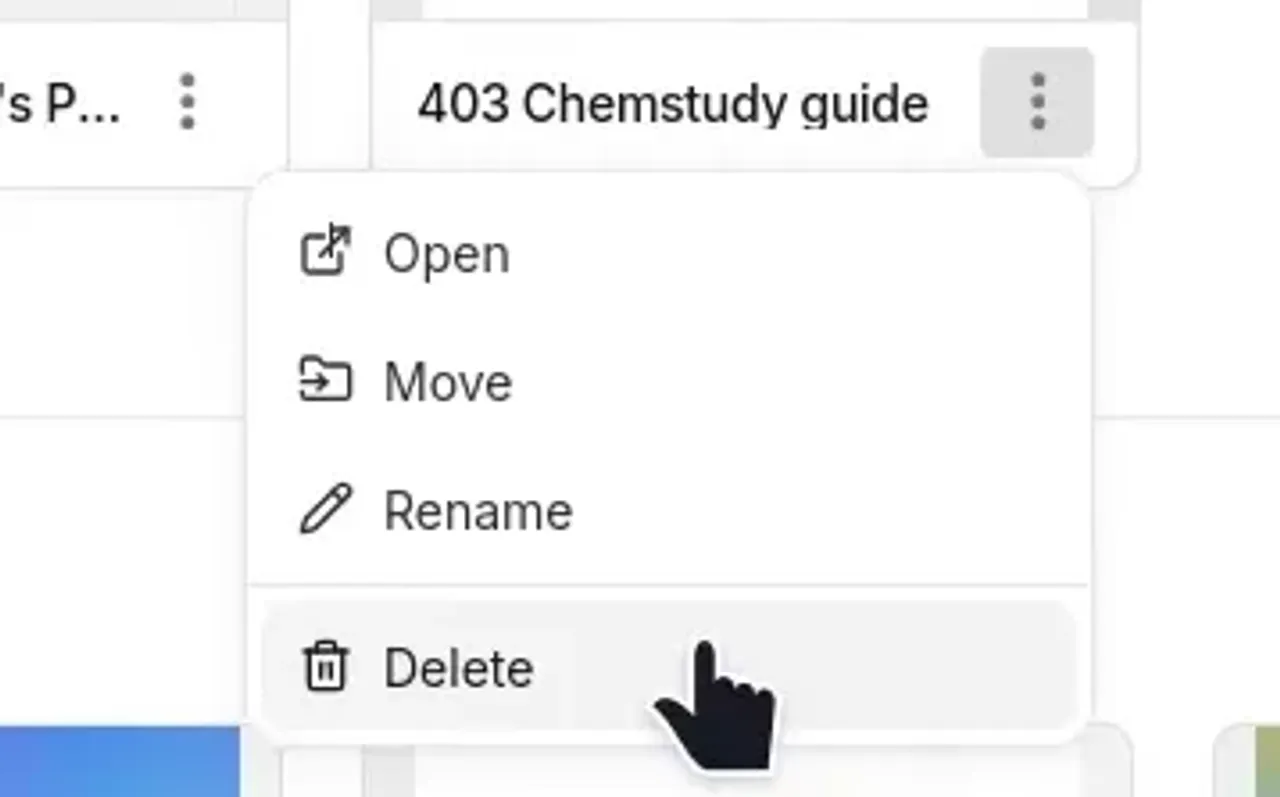
- Hover over the document you want to remove and click the three dots icon next to it.
- Select Delete and confirm.
Create and Manage Folders on Web
- Create a Folder: Right-click anywhere in the blank space of your library list and select New folder, or click the folder button.
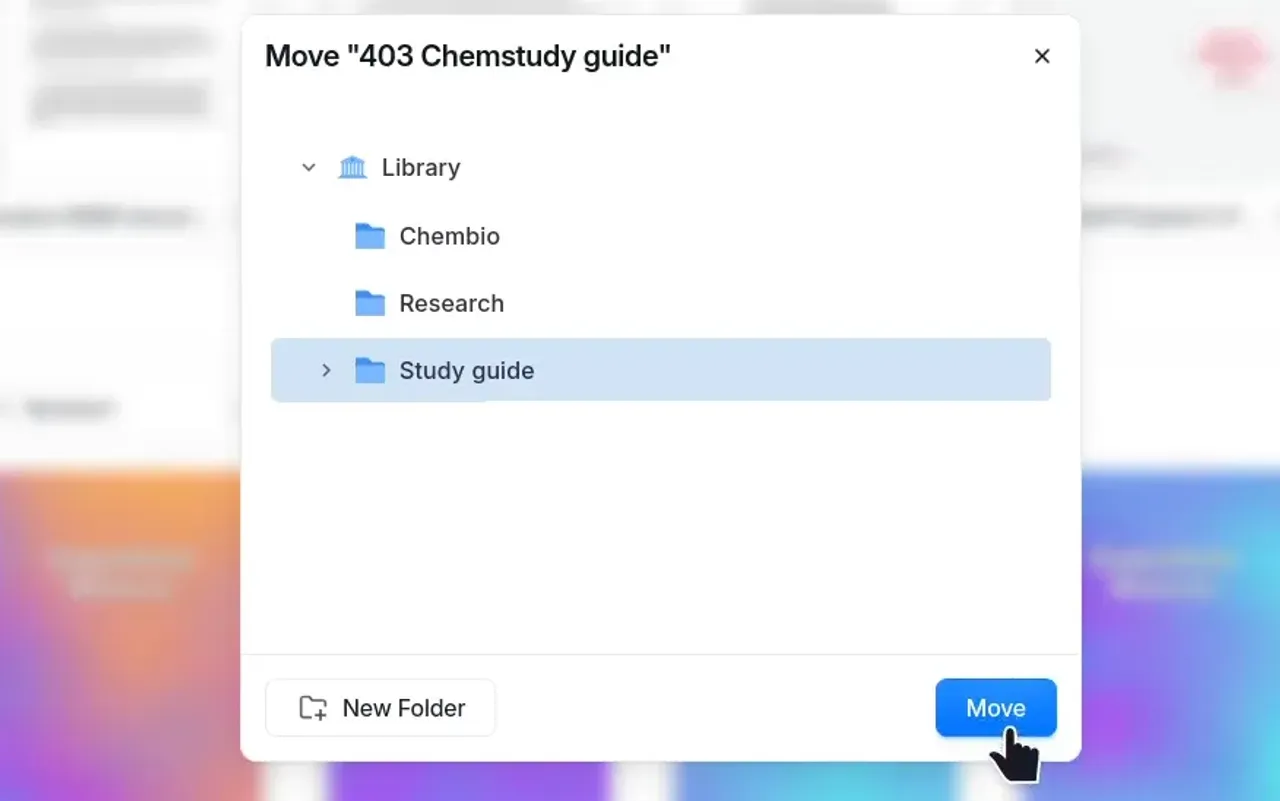
- Move Files or Folders: Click the three dots next to any document or folder, select Move to, choose your target folder in the library tree, and click confirm.
- Rename a Folder: Click the three dots next to a folder, select Rename, type the new name, and save.
- Delete a Folder: Click the three dots next to a folder and select Delete. This will delete both the folder and any documents stored inside it.
Delete Documents and Manage Folders on the Audeus Mobile App
For mobile library management, you can open options menus to organize and delete your documents:
Delete Documents on Audeus Mobile App
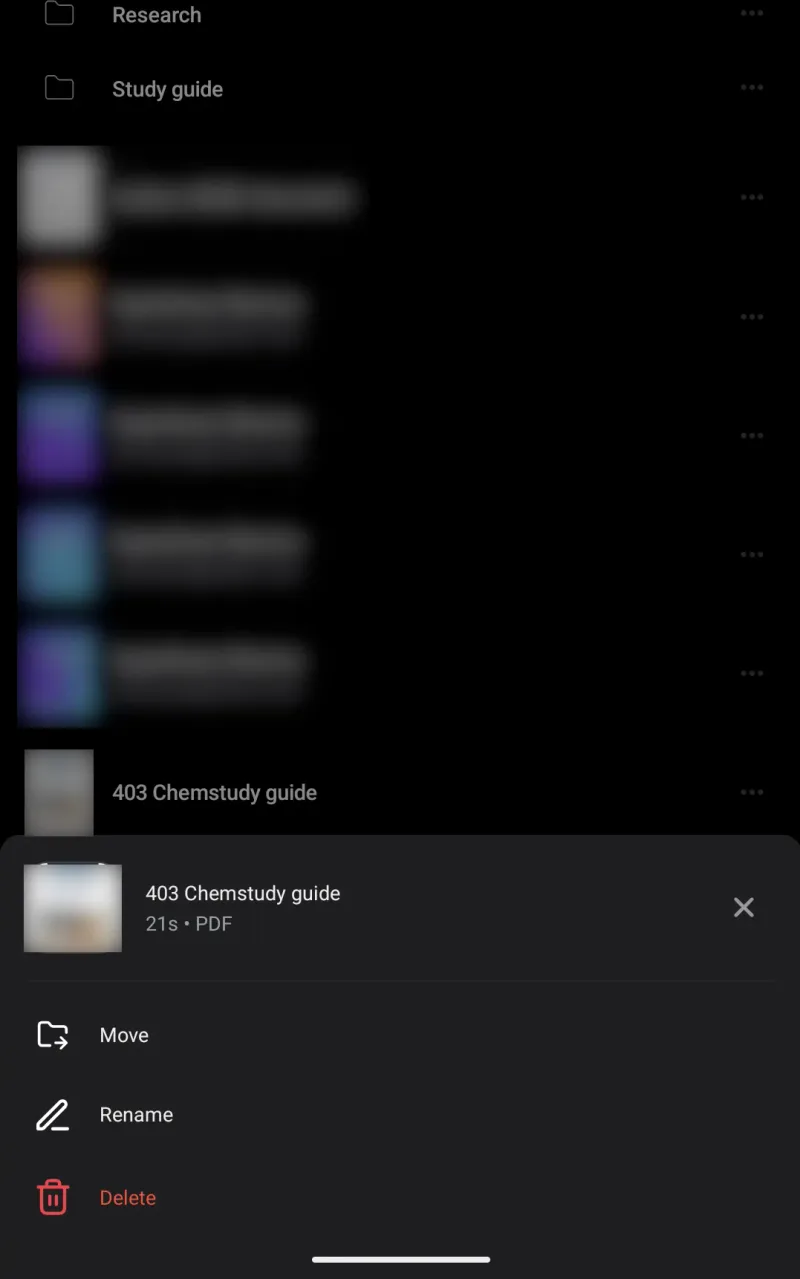
- Tap the three dots icon next to the document name you want to remove.
- Select Delete from the options menu and confirm in the popup.
Create and Manage Folders on Mobile
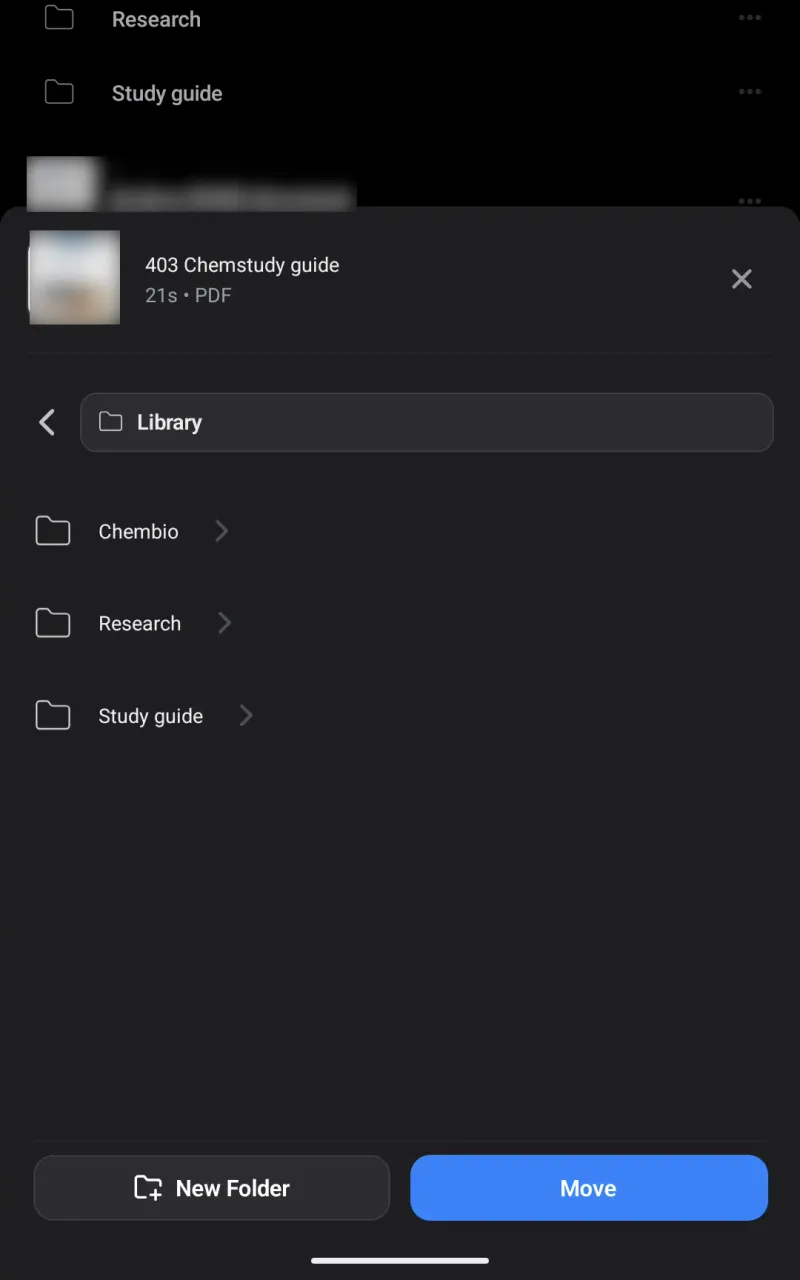
- Create a Folder: Tap the three dots next to any document, select Move, and tap the New Folder button at the bottom left of the screen. Enter a name and tap Create.
- Move a File: Tap the three dots next to the document, select Move, tap the target folder in your library folder browser list, and tap the Move button at the bottom right.
- Rename a File or Folder: Tap the three dots next to the item, select Rename, enter the new name, and save.
- Delete a Folder: Tap the three dots next to a folder and select Delete. Confirming this will permanently delete the folder and all its documents.
Audeus Library Upload and Document Storage Limits
- Free plan: Free accounts include a standard limit on the number of document uploads.
- Audeus Pro plan: Upgrading to Audeus Pro increases the number of documents you can save in your library, making it easy to store your textbooks, EPUB books, and documents. For more information on plans, read our guide on Pricing and Billing Cycles.
Frequently Asked Questions
Does deleting a document on my phone remove it from the web reader?
Yes. Audeus keeps your library updated on all your devices. Deleting a document on one device removes it from all other devices too. If you need to set up the mobile app, follow our guides for iOS and Android.
What happens to the files inside a folder if I delete the folder?
Deleting a folder deletes the folder and all files stored inside it. If you want to keep those documents, make sure to move them out of the folder before you delete it.
Can I recover a document after it has been deleted?
No. Document deletion is permanent. Once you delete a file, it is removed from the cloud. You will need to upload the original file again if you want it back.
Can I create folders inside other folders?
Yes. Audeus supports folder nesting to help you organize your reading. You can create subfolders or move folders into other folders through the Web Reader interface.
Related Guides
Still need help?
Contact Support